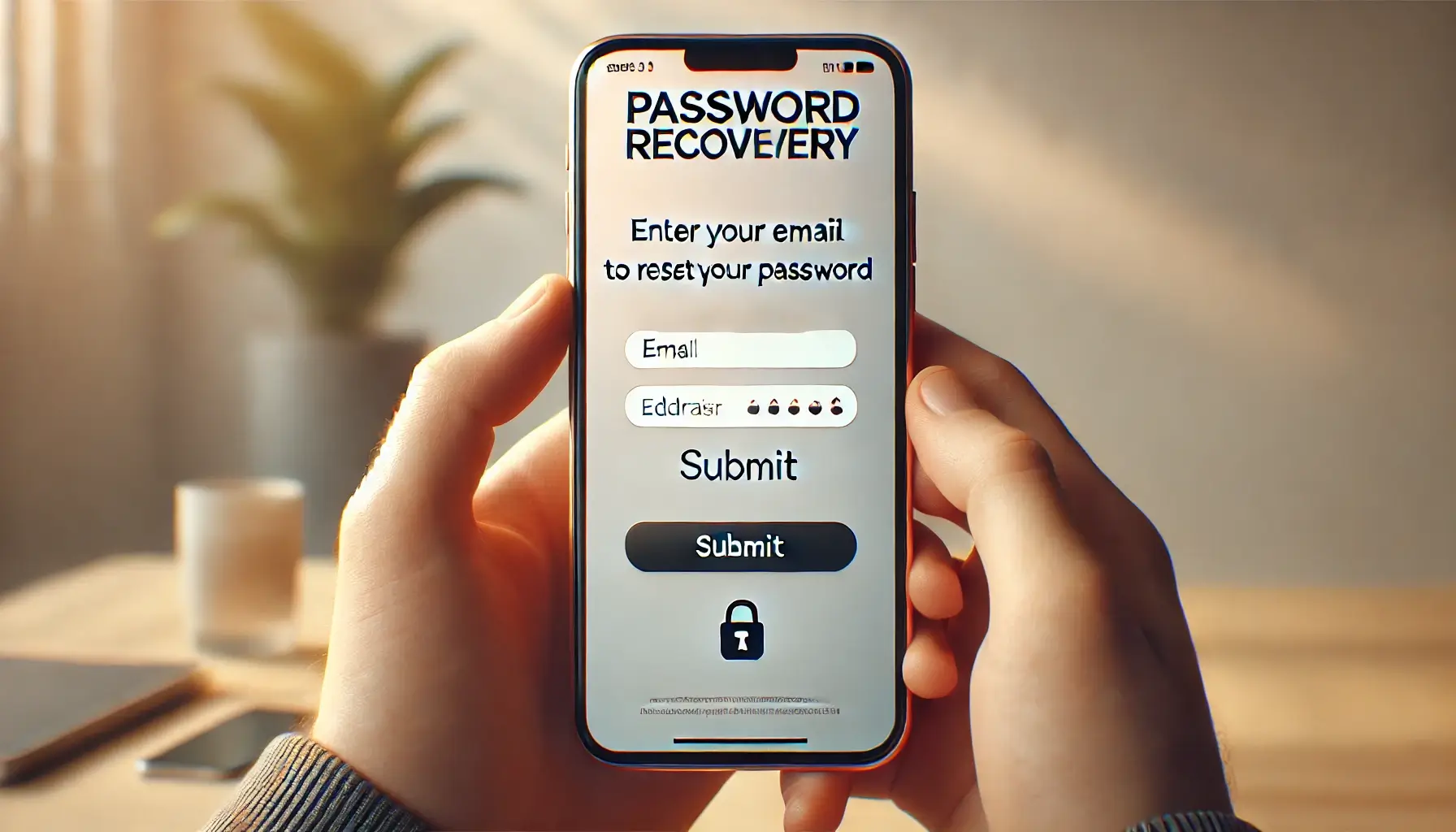
Here's how to reset your password.
You will remain on this site
The Path Works for Any Provider
Gmail, Outlook, Yahoo, or iCloud: the starting point is always the same. On the login screen, after typing the address, look for the "Forgot your password?" link (or "Can't access?" / "Forgot your password?"). This link opens the official password reset process. Don't try guessing the password multiple times in a row—this only delays the process, as the service may block attempts for security reasons.
From there, the provider will offer ways to confirm that the account is yours. The order of these options changes from service to service, but the goal is the same: to prove your identity in order to allow the creation of a new password. The more contact methods you have registered (mobile phone, recovery email), the simpler it becomes.
Receive the code on your mobile phone or email. Booking
The most common method is the verification code. The service sends a six-digit sequence via SMS to the registered number, or via text message to the recovery email you provided when creating the account. You enter the code on the screen and proceed directly to setting a new password. It's that simple, as long as you still have your phone number or recovery email.
If the code takes a while to arrive, wait a few minutes before requesting another one—requesting several in a row usually delays rather than speeds things up. Also check the spam folder of the recovery email, because these messages sometimes end up there. And a warning that applies to all providers: no legitimate service calls you asking for the code you received. If this happens, it's a scam—don't give out the number.
Approve via the already connected device.
If the service offers confirmation on a device that is already connected, open the notification and verify the details of the attempt. Only confirm requests that you initiated and follow the verification instructions provided.
If the notification doesn't appear, check your device's connection and consult the app or account settings. If confirmation remains unavailable, use another alternative provided by your provider.
Create a New and Strong Password
Once your identity is confirmed, you reach the screen to set your password. This is a good time to rethink your security: instead of reusing a password you already use on other sites, create a unique one for your email. A good password is long, mixes letters, numbers, and symbols, and has no obvious connection to your name or date of birth.
When You Don't Have Access to Phone and Recovery Email
It's possible you no longer have any of your registered contacts—you changed your number, lost your recovery email. In this case, the provider will ask verification questions: when the account was created, frequent contacts, folders you used. This scenario requires exploring other recovery options, explained in the specific guide.
Recommended Next Steps
After regaining access, fix the issues that prevented you from logging into your account. Choose the option below that makes the most sense right now:
You will remain on this site
FAQ
Is the step-by-step process the same in Gmail, Outlook, and Yahoo?
Essentially, yes. They all have a "Forgot password?" link, confirm identity via code or connected device, and are prompted to create a new password. The button names change, but the logic remains the same.
The verification code hasn't arrived. What should I do?
Check the recovery number or email, look in your spam folder, and wait a few minutes. Avoid requesting multiple codes in a row, as this may delay delivery instead of speeding it up.
Can I use the same password as before?
It's best not to. If you've forgotten it, the ideal thing to do is create a new, strong, and unique password for your email, and keep it safe so you don't go through the same difficulty again.
I received a call from "support" asking for the code. Is it trustworthy?
No. No email provider calls asking for the verification code. Whoever does this is trying to hack your account. Never share the number that was sent to you.
I reset my password but I still can't log in. What now?
Wait a few minutes and try again from your usual device. If the problem persists, it may be a sign that the account has been compromised or is very old — see the guide on recovering old email.
Resetting your email password is, in most cases, a matter of following the right steps and having a little patience. Confirm your identity using the available method, create a new, strong password, and keep it safe—this reduces the risk of further unauthorized access.
Sources consulted: official Google, Microsoft, and Yahoo Help Centers on account recovery and security (support.google.com, support.microsoft.com, help.yahoo.com) and CERT.br (cert.br).