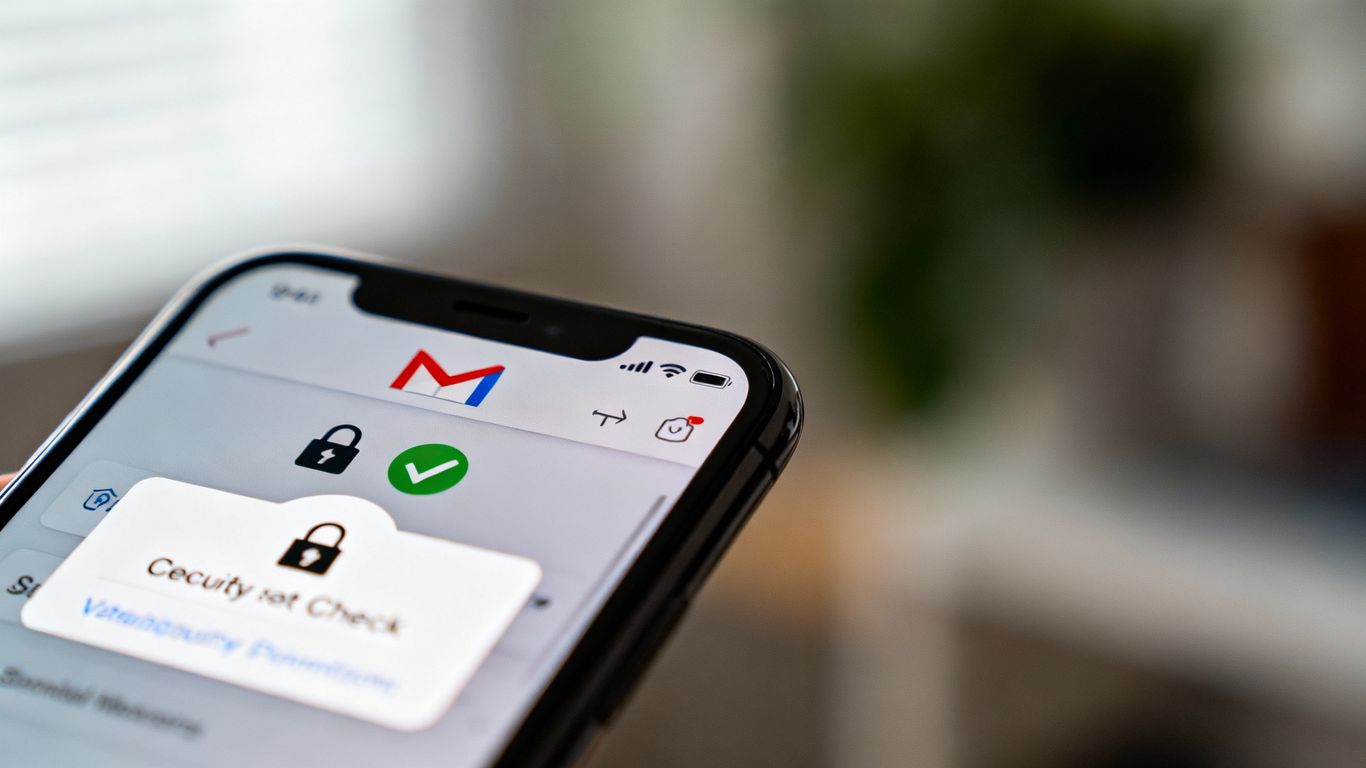
Start the recovery on your mobile phone.
You will remain on this site
On Android: through Settings or through the browser.
On Android, check your Google Account settings and security options. To change your password, follow the prompted verifications. If you can't access your account, use the official recovery option through your browser.
If you can't access the settings, open the official recovery page in your browser. If possible, use a device already associated with the account and follow the verification steps presented by Google.
The notification that appears on the already logged-in device
Google may present a verification request on a device associated with the account. Only confirm attempts initiated by you and follow the subsequent instructions.
To receive a confirmation request, the device must meet the conditions indicated by Google, such as being signed in to the account and having internet access. If the option does not appear, check the other available recovery methods.
On iPhone: via browser or Gmail app
On your iPhone, use the Gmail app or your browser to access your Google Account options. If you need to recover your password, follow the official procedure and the verification steps provided.
If you're not signed in to the app, start the recovery process through your browser. Google may offer a code, a notification, or another form of verification, depending on your account.
What if the phone is new and the account isn't logged in?
On a new device, some confirmation options may not be available. Use the official recovery and follow the alternatives presented.
If you still have a device associated with the account, check if it can receive a verification request. If you've lost access to the old device, use the other options offered by Google.
Tips for typing your password correctly on a small keyboard.
Check the keyboard language, capitalization, and typed characters. Use the option to show the password only in the password field on the official page and in a private environment.
Check for similar numbers and letters before submitting. When creating your new password, choose a long, unique, and hard-to-guess combination. A password manager can help you create and store it.
Recommended next steps
With your password reset on your phone, it's time to take the next step: protect your account so that no one can access it without your authorization, and organize your passwords in a secure location. Use the buttons below to see tools that protect your Google account and to choose a good password manager.
You will remain on this site
FAQ
Can I change my Gmail password using only my mobile phone?
Yes. You can start the process through your mobile browser or via the Google Account options available on your device. The switch depends on the required verifications.
What does the "Is that you?" message that appears on the cell phone mean?
This is a confirmation that Google sends to the device already logged into the account. If Google presents this option, confirm the request on the device and follow the next instructions.
My phone is new and the account isn't on it. What now?
Start the official recovery process and follow the options provided. If you still have a device associated with the account, check if it offers a verification option.
I type the correct password and it's not accepted. Why?
Check your account address, keyboard language, capitalization, and similar characters. If the information is correct and the password is still rejected, use the official recovery method.
Do I need to download an app to recover it on my phone?
You can start the recovery process through your browser, without installing another app. If you already use Gmail on your device, also check the account options available there.
Use the official procedure on your mobile phone and follow the instructions. If you regain access, set a unique password, review the recovery details, and keep the credentials in a safe place.
Sources consulted: Google Help Center (support.google.com) and Apple Support (support.apple.com).