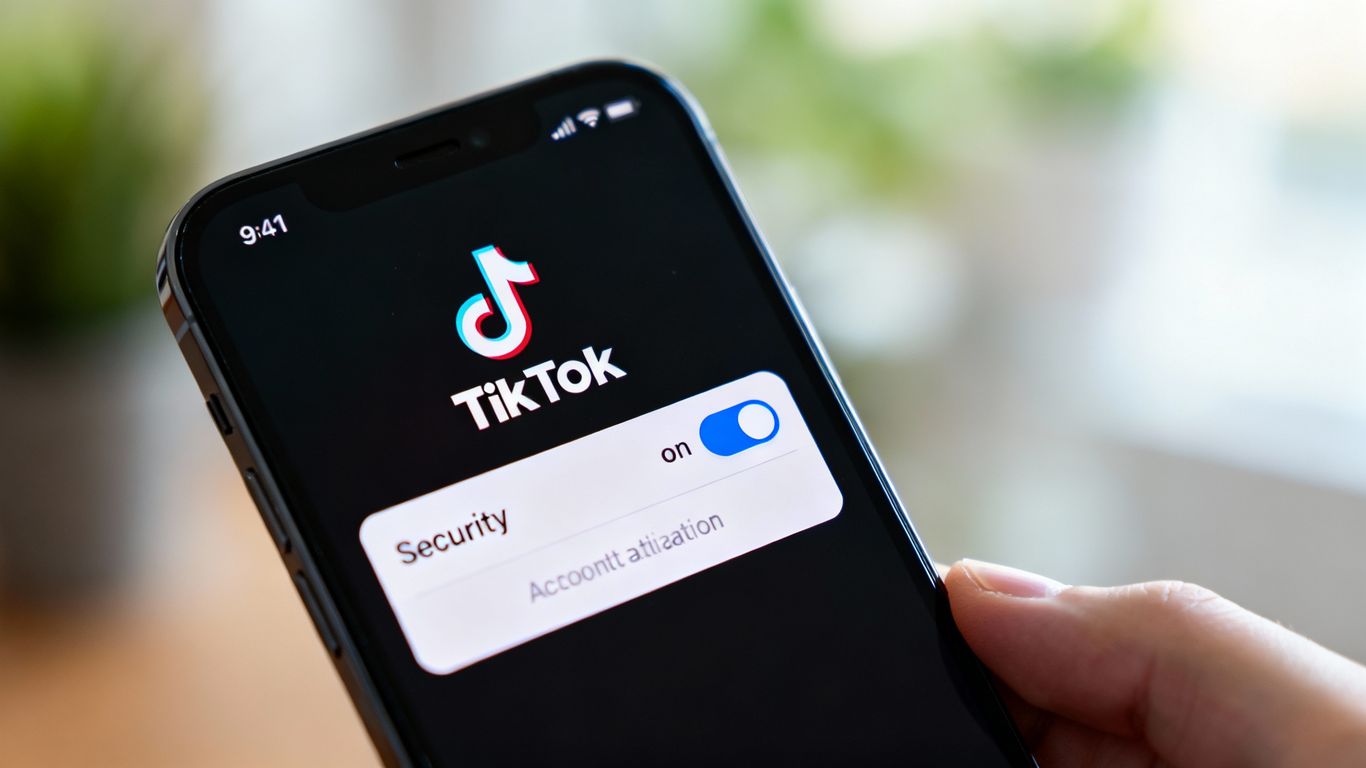
With the amount of information we store online these days, protecting your Hotmail account has become very important.
A strong password is a good start, but it's not enough to stop anyone from really trying to break into your space. That's where Hotmail two-step verification comes in, an extra layer of security that makes a big difference.
Let's see how to set it up and why it's so essential to keeping your data safe.
Key Points
- Hotmail two-step verification adds an extra layer of security by requiring more than just your password to access your account.
- There are several methods for the second step, such as codes via SMS, alternative email, authenticator apps, or physical security keys.
- Setting up this verification is a simple process through your Microsoft Account security options.
- In addition to two-step verification, it's important to use strong passwords, be aware of phishing emails, and keep your devices up to date.
- Keeping your recovery information up to date and reviewing recent account activity are essential practices for ongoing security.
What is Hotmail Two-Step Verification?
An Extra Layer of Security Against Hackers
Your email account, especially if it's a Hotmail account (now part of Outlook.com), is a gateway to much more of your information on the internet. Think about how many passwords you may have reset using your email, or how many services are linked to it. Therefore, it becomes a very attractive target for those who want to break into systems, the so-called hackers. Simply having a strong password is no longer a complete guarantee of security. That's where two-step verification comes in, a tool that adds an extra obstacle for anyone trying to access your account without your permission. This second step is what really makes life difficult for those who want to steal your information.
How Two-Step Verification Works
The process is pretty straightforward. When you enable two-step verification, in addition to entering your usual password when logging in, you'll need to provide a second form of verification. This verification can come in a variety of forms, such as a code sent to your phone via SMS, a code generated by an authenticator app on your smartphone, or even an email sent to an alternate account you've registered. Essentially, you're proving yourself in two distinct ways. This means that even if someone discovers your password, they'll still need access to your phone or your authenticator app to log in.
Benefits of Additional Authentication
Adopting two-step verification brings a number of clear advantages to your account security:
- Protection against stolen passwords: If your password is compromised in a data breach or discovered through social engineering, the attacker still won't be able to access your account.
- Access to safer services: Many modern online services require or strongly recommend two-step verification to protect user accounts.
- Tranquility: Knowing that your account has an extra layer of security can give you a feeling of greater security when using online services.
- Account recovery made easy: In some cases, having additional verification methods set up can help you regain access to your account if you forget your password or get locked out.
Two-step verification is one of the most effective ways to protect your account from unauthorized access. It acts as an extra doorman for your digital home, requiring additional identification before allowing entry.
Setting Up Hotmail Two-Step Verification
Now that you understand what two-step verification is and why it's important, let's get to the point: how to enable it on your Hotmail account. The process is straightforward and doesn't require advanced technical knowledge. Basically, you'll access your Microsoft account settings and follow a few simple steps.
Accessing Microsoft Account Security Options
To get started, you'll need to access your account's security area. Open your web browser and go to the Microsoft Account page. Sign in with your Hotmail email address and current password. Once logged in, look for a link or button that says something like "Security" or "My Account." You'll usually find this in the main menu or by clicking your profile picture or name in the top-right corner of the screen. When you click "Security," you'll see a summary of your security information and the options available to protect it.
Choosing Your Additional Verification Method
Within the security options, you'll find a section to set up two-step verification. The system will present you with several ways to add this extra layer of protection. The most common options include:
- Receive a code via SMS: A code will be sent to the mobile number you registered. You'll need to enter this code when logging in.
- Receive a code via alternative email: A code will be sent to a secondary email address you've set up. It's a good idea to have a different email address than Hotmail for this.
- Use an authenticator app: Apps like Microsoft Authenticator or Google Authenticator generate temporary codes directly on your smartphone. This is a very secure option.
- Using a physical security key: A USB device that you plug into your computer to authenticate access. It's one of the most secure methods, but it requires purchasing the device.
You can choose one or more methods. It's a good idea to have more than one in case you lose access to one.
It's important to remember that Microsoft will never ask for your full password via email. Be wary of any message requesting this information.
Finalizing Your Account Setup
After choosing your preferred method(s), the system will guide you to complete the setup. This may involve confirming your phone number, verifying your alternate email, or setting up the authenticator app on your mobile phone. Follow the on-screen instructions carefully. At the end, your two-step verification will be active. From then on, whenever you try to access your Hotmail account from a new or unrecognized device, you will be asked for this additional code, ensuring that only you have access.
Available Two-Step Verification Methods
Once you've decided that two-step verification is the way to go to protect your Hotmail account, you'll be faced with a few options for setting up this extra layer of security. Don't worry, the process is straightforward, and Microsoft offers flexibility so you can choose what works best for your daily routine.
Alternative SMS or Email Authentication
One of the most common and accessible forms of two-step verification is a code sent via SMS to your cell phone or to an alternate email address you've registered. When you log in on a new or unrecognized device, the system will send you a numeric code. You'll need to enter this code on the website to prove you're the real deal. It's a practical solution because most people always have a cell phone nearby.
- SMS: Receive a code directly to your registered phone number.
- Alternative email: A code is sent to another email account that you have access to.
Remember to keep both your phone number and alternate email address up to date. If you lose access to them, you may be unable to log into your Hotmail account.
Using Authenticator Apps
For those seeking a little more convenience and security, authenticator apps are an excellent option. They work by generating verification codes that change every few seconds, directly on your smartphone. Apps like Microsoft Authenticator, Google Authenticator, or Authy are popular examples. The advantage is that you don't rely on a cell phone signal or access to another email address to receive the code; it's right there, in your app.
- Automatic Generation: Codes that are renewed periodically.
- Offline: Does not require internet connection or cell signal to generate codes.
- Enhanced Security: Temporary codes make unauthorized access even more difficult.
Physical Security Keys for Protection
If you handle highly sensitive information or simply want the highest level of protection, a physical security key may be the best option. This is a small device, usually in the form of a USB flash drive, that you connect to your computer or use via NFC/Bluetooth with your mobile phone. When logging in, you enter the key and, in many cases, need to touch it to confirm your identity. These keys are considered one of the most secure methods against phishing and other online attacks.
- Phishing Resistance: They can hardly be fooled by fake websites.
- Easy to use: Connect and tap to authenticate.
- Portability: Take your security with you wherever you go.
Protecting Your Account Against Online Threats
Keeping your email account secure is an ongoing effort, and it's not just about having a strong password. The online world is full of people looking to take advantage, and it's good to be prepared. Let's talk about some things you can do to better protect yourself.
The Importance of Strong and Unique Passwords
Your password is your first line of defense. If it's weak or you use it in multiple places, it's like leaving the door open. Think about creating passwords that are difficult to guess. Don't use birthdates, family names, or obvious sequences like '123456'. A good tactic is to use a phrase you remember and turn it into a password, mixing uppercase letters, lowercase letters, numbers, and symbols. For example, 'ILoveReadingBooksIn2025!' could become 'ILoveReading@2025!'. Remember, the more complex, the better. And most importantly: never use the same password for your email account and other services. If a website is hacked, your email account could be at risk.
Identifying and Avoiding Phishing Emails
Phishing is when someone tries to trick you into revealing personal information, such as passwords or banking details, by pretending to be a trustworthy company or individual. These emails may appear legitimate, with logos and language similar to that of well-known companies. Watch out for spelling mistakes, suspicious links, or urgent requests for information. If an email asks you to click a link and confirm your details, be wary. Microsoft, for example, will never ask for your password via email. When in doubt, don't click and go directly to the company's official website to verify the information.
Phishing emails are like wolves in sheep's clothing. They look like something you know and trust, but their goal is to steal from you. The best defense is distrust and verification.
Keeping Your Devices and Software Up to Date
Your computer and cell phone are the tools you use to access your account. If they're out of date, they may have security flaws that hackers can exploit. That's why it's so important to keep your operating system (Windows, macOS, Android, iOS) and all your programs, especially your browser and antivirus, up to date. Updates often fix these security flaws. Set your devices to update automatically so you don't have to worry about manually updating them.
Here are some practical actions:
- Check for operating system updates: Set your PC and phone to automatically download and install updates.
- Use a good antivirus: Keep your antivirus software installed and updated. It helps detect and remove malware.
- Be careful with attachments and links: Only open attachments and click on links in emails if you are absolutely sure they are safe and come from a trusted source.
Managing Your Security Information
Keeping your security information up to date is an important step in ensuring you can recover your account if something happens. Think of it as having a plan B, or even a plan C, for your email.
Adding Multiple Recovery Information
To ensure your account is as secure as possible, it's a good idea to add more than one way to recover access. This means that if you lose your password or your account is compromised, you'll have more options to prove your account is yours. Typically, an alternate phone number and a secondary email address are the most common and useful. The more information you add, the easier the recovery process will be.
- Phone number: A number you use regularly and can receive SMS.
- Alternative email address: An email address you access frequently, but that isn't your primary Hotmail address.
- Security Questions: Although less common today, they can still be an option in some cases.
Reviewing Recent Account Activity
Checking your recent account activity is like checking your bank statement, but for your email. You can see where and when your account was accessed. If you notice anything unusual, like a login from a location you don't recognize or at an unusual time, that's a red flag. It's a good idea to check this periodically to make sure everything is as it should be.
Being alert for unexpected access can be the first line of defense against malicious activity. If something seems out of the ordinary, act quickly.
Updating Your Security Preferences
Your account security settings aren't something you set once and forget about. The world of online security changes, and so do your needs. Therefore, it's important to review your security preferences periodically. This could include changing your password regularly, checking which apps have access to your account, or adjusting your two-step verification settings. Keeping everything up to date ensures your protection is always up to date against the latest threats.
Protect Your Hotmail Account: An Essential Step
By the end of this conversation, it's clear that protecting your Hotmail account involves more than just choosing a strong password. Two-step verification is a powerful tool that adds an extra layer of security, making it much more difficult for anyone trying to hack into your email. Remember that online security is an ongoing process. By implementing these measures, you're taking an important step toward keeping your personal information and communications safe. Don't delay; enable two-step verification today and browse with greater peace of mind.
FAQ
What exactly is Hotmail two-step verification?
Think of two-step verification as extra security for your email account. In addition to your password, you'll need a second confirmation to prove it's you. This could be a code sent to your phone or a special app that generates numbers. It's like having two locks on your front door to keep strangers out.
Why should I use two-step verification?
Using this verification is crucial because hackers are always trying to steal your information. If someone discovers your password, with two-step verification, they'll still have difficulty accessing your account. This protects your conversations, files, and personal information from falling into the wrong hands.
What are the most common ways to do this second check?
There are several easy options. You can receive a code via text message (SMS) on your cell phone, or an email with the code at another address you have. Another option is authenticator apps, which create codes that change every minute. For those who want maximum security, there are even physical keys that look like a USB flash drive.
Is it complicated to set up two-step verification?
Don't worry, it's simpler than it seems! Typically, you'll go to your Microsoft account's security settings (the same one you use for Hotmail). There, you'll choose your preferred method for the second step and follow a few easy steps. It's a quick process that significantly increases your email security.
What should I do if I forget my password or lose my phone?
That's why it's good to have more than one way to recover your account! When setting up two-step verification, you can add an alternate phone number or email address. This way, if something happens to one of them, you'll still have the ability to prove it's you and regain access to your account.
How can I tell if I'm being scammed (phishing)?
Be wary of emails asking for your password or personal information, even if they appear to come from Hotmail. Microsoft will never ask for your password via email. Be wary of strange links or unexpected attachments. If an email seems suspicious, it's best not to click on anything and delete it to protect yourself.