Diving into the digital universe where our memories are stored is more than just a click; it's a journey through the stories that define our lives. How to view photos from the cloud has become a recurring question in the digital age, especially when these moments are scattered across different platforms and devices. This article is a beacon for those navigating the sea of information, seeking simple and secure ways to access and manage these precious digital memories.
Finding a specific photo can feel like searching for a needle in a digital haystack. However, with the right tools and tips, this process can be as easy as finding your favorite pair of socks in an organized drawer. We're here to make accessing your photos stored in the cloud hassle-free, ensuring you can relive your favorite moments with just a few taps.
From recovering lost treasures to perfectly organizing your memories, each section of this guide is designed to transform chaos into harmony. Whether you're an amateur photographer or someone who just wants to keep memories of trips and family gatherings safe, this article is the treasure map you needed to navigate the world of cloud photo storage.
Accessing your photos in Google Photos
Verify your Google account: The first step to diving into your digital archive is ensuring you're logged into the Google account used to back up your photos. It seems simple, but we often forget we have multiple Google accounts and unintentionally end up looking for photos in the wrong place. A quick check at the top of the Google Photos app can save you from a fruitless search.
Photos from third-party apps: Did you know that perfect selfie on Instagram or that amazing picture on Facebook can also be safely stored in Google Photos? That's right. By backing up the folders on your device where these apps save images, you automatically integrate those memories into your digital portfolio on Google Photos. To do this, simply go to:
- Open the Google Photos app.
- Tap “Library” at the bottom.
- Select “Photos on Device” and view your folders.
- Enable backup for specific folders, ensuring no memory is left behind.
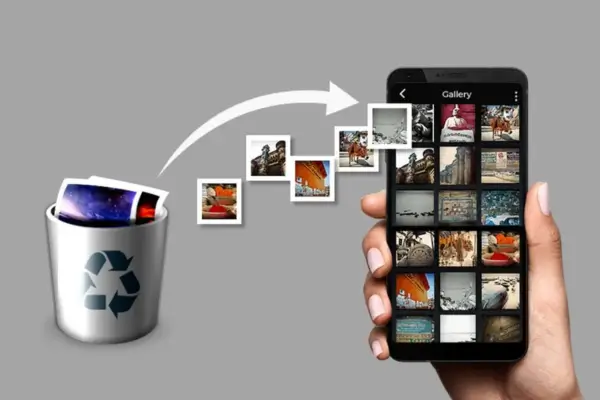
Recovering deleted photos: We've all experienced that moment of panic when accidentally deleting a photo. But stay calm! Google Photos keeps deleted photos in the trash for 60 days. To recover them, simply:
- Go to the trash in the Google Photos app.
- Select the desired photo.
- Click “Restore” to bring it back to your main collection.
This section makes accessing your photos stored in Google Photos hassle-free, from verifying your account to recovering deleted photos. With these simple steps, you have complete control of your digital photographic universe.
Advanced tips for managing your photos
Activating automatic backup: Ensuring your most precious memories are safe is fundamental. Automatic backup is your best friend in this process, ensuring that every snapshot, whether a casual lunch with friends or an unforgettable sunset, is safeguarded. To activate it, go to your Google Photos settings and make sure the backup option is enabled. This way, you can relax knowing your photos are automatically protected.
Archived photos and search: Organization is key to efficiently managing your photos. Use the archiving function to clean up your main view, keeping photos accessible without cluttering your timeline. To find any photo, the Google Photos search bar is surprisingly intuitive. You can search by date, location, people, and even specific objects or events in your photos, thanks to Google's powerful image recognition technology.
To keep your photos well organized and easy to find, consider the following practices:
- Regular archiving of less important photos: Keep your timeline clean and focused on the memories that matter most.
- Creation of themed albums: Organize your photos into albums based on events, locations, or any theme that makes sense to you.
- Using tags and descriptions: Make searching easier by adding relevant information to your photos.
Avoiding photo loss: Being aware of Google Photos' inactivity policy and storage limits is crucial to preventing unpleasant surprises, such as content deletion. If your account is inactive for two years or you exceed the storage limit for that same period, you may face the loss of your photos. Keep an eye on your activity and available storage space, performing regular cleanups or purchasing more space if necessary.
With these advanced tips, you'll not only be protecting your photos from accidental loss, but also improving the way you access and enjoy your digital memories. A well-managed photo collection is a digital treasure at your fingertips.
In our digital journey, each photo is a fragment of our history, a piece of the puzzle that makes up who we are. Mastering the art of viewing and skillfully managing photos in the cloud isn't just about technology; it's about preserving our most cherished moments, making them accessible and secure for the future. With the right tools and a little knowledge, each of us can become the guardian of our own stories, ensuring that every smile, every sunset, and every adventure is always within our reach, ready to be relived and shared. In this digital age, your memories are your most valuable treasure. Take good care of them.
FAQ – Frequently Asked Questions
1. How do I enable automatic backup in Google Photos? To enable automatic backup, open the Google Photos app, go to settings, and look for the backup option. Make sure it's enabled so your photos are automatically saved to the cloud.
2. Can I recover photos I accidentally deleted? Yes, deleted photos remain in the trash for up to 60 days. You can recover them by accessing the trash in Google Photos, selecting the desired photos, and clicking "Restore".
3. How can I quickly find a specific photo in Google Photos? Use the search bar at the top of the Google Photos app. You can search by dates, locations, people's names (if you have facial recognition enabled), objects, and even events in the photos.
4. What happens if I exceed my Google Photos storage limit? If you exceed your storage limit for two years or more, you may face content deletion. Consider regularly cleaning up your photos or purchasing more storage space to avoid losing your digital memories.