Have you ever thought about what would happen if your Android device suddenly crashed? All your photos, contacts and important documents can be lost forever. That's why it's crucial to regularly back up your data. In this article, I will show you how to backup Google or restore data on your Android device simply and safely.
Google offers a built-in solution for backing up your data, which can save you a lot of headaches in the future. With automatic backup set up, you can have peace of mind knowing your information is safe. Additionally, we will learn how to restore this data if necessary, ensuring that you can recover your information with ease.
If you value the security of your data, you cannot ignore the importance of backing it up regularly. By following the simple steps outlined in this article, you will be effectively protecting your information, ensuring it is always available when you need it. Let's get started setting up your Google backup and ensuring your data is safe!
Initial Steps and Adjustments
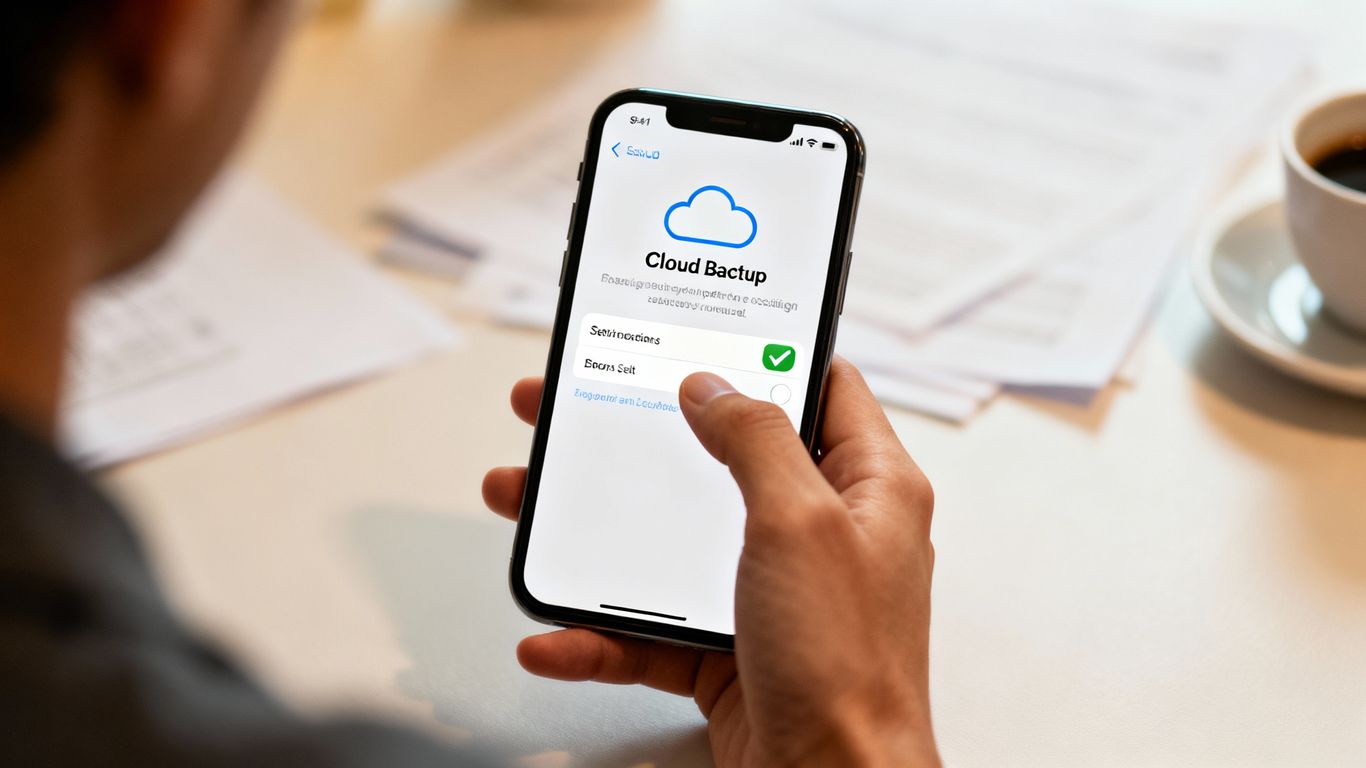
To configure automatic backup of your data on Google, follow the steps below:
- Access your Android device's settings.
- Look for and click on the “System” or “System Settings” option.
- Then select “Backup” or “Backup and Reset”.
- Check if the automatic backup option is enabled. If not, activate it.
- Select the Google account you want to use for the backup.
- Make sure the option to automatically back up apps, settings and data is checked.
- Click “Back up now” to start the backup process.
After following these steps, your Android device will be set to automatically back up your data to Google. Be aware that the process may take a while depending on the amount of data to be saved. Make sure you are connected to a stable Wi-Fi network to avoid interruptions during backup.
Recovering your Information
If you need to restore your data on an Android device, follow these simple steps:
- Access your Android device's settings.
- Look for and click on the “System” or “System Settings” option.
- Select “Backup” or “Backup and Reset”.
- Check if the automatic restore option is enabled. If not, activate it.
- Select the Google account you used to make the backup.
- Click “Restore Data” and choose the types of data you want to restore, such as apps, settings and data.
After following these steps, your data will be restored to your Android device. Make sure you are connected to a stable Wi-Fi network to ensure the restore completes successfully.
Final Words
Backing up your data to Google and knowing how to restore it to an Android device can save precious moments and important information. It's a simple step that can protect your data from unexpected loss. Always remember to keep automatic backup enabled and regularly check whether your data is being saved correctly. With these simple measures, you can rest assured that your data is safe and accessible whenever you need it.
FAQ – Frequently Asked Questions
- How do I check if my data is being saved correctly on Google?
- You can check the status of your backup by going to your Android device's settings, selecting “Backup” or “Backup & Reset” and checking the last time your data was saved.
- Can I backup specific apps to Google?
- Yes, you can select which apps you want to include in the automatic backup in your Android device's settings, under “Backup” or “Backup and Reset”.
- What happens if I restore my data to a new device?
- When you restore your data to a new device, you'll have access to the same information that was on your previous device, including apps, settings, and data.
- Is it possible to back up photos and videos to Google?
- Yes, Google offers the option to back up photos and videos to Google Photos, ensuring your memories are safe and accessible on any device.