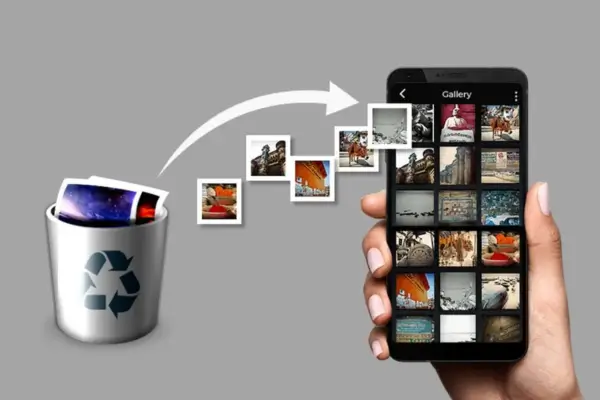
Imagine this: you're organizing your iPhone, cleaning out your gallery of old photos, when suddenly, horror strikes: you accidentally delete precious photos of unforgettable moments!
Desperation takes over, and the mind fills with questions: “Can I recover my photos? How do I do it? Is there any hope?”
Calm down, don't panic! In this comprehensive guide, you will find all the information you need to recover deleted photos on your iPhone, from native iOS methods to professional data recovery software. Let's explore each solution in detail, step by step, so you can restore your most cherished moments easily and safely.
Get ready for an exciting recovery journey! Together, we'll unlock the secrets of the iPhone and bring your photos back to life.
Help! I lost my iPhone photos! What to do?
A moment of terror takes over when you realize that your precious iPhone photos have disappeared. Desperation knocks on the door, and the mind is faced with a whirlwind of questions: “How do I recover my photos? Are they gone forever?”
But don't despair! There is still hope!
Before you panic, take a deep breath and follow these crucial steps:
1. Check Recently Deleted Album:
This is the first place to be searched. Fortunately, iOS has a special album that stores deleted photos for up to 30 days. To access it:
- Open the app Photos.
- Touch Álbuns at the bottom of the screen.
- Scroll down and locate the album Recently Deleted.
- Open the album and check if your photos are there.
If your photos are in this album, simply select them and tap Recover to restore them to your main gallery.
2. Use iCloud Photos:
If you turned on iCloud Photos backup, your photos may be stored in the cloud even if you deleted them from your iPhone. To verify:
- Go to iCloud.com in a web browser.
- Sign in with your Apple account.
- Please click Photos.
- Browse the folders and check if your photos are there.
If you find your photos in iCloud Photos, you can download them to your iPhone or restore them directly to your device.
3. Access iTunes (for computers):
iTunes, despite no longer being used to sync iPhone, can still be useful for recovering photos in some cases. For that:
- Connect your iPhone to your computer with a USB cable.
- Open iTunes on your computer.
- Select your iPhone in the sidebar.
- Click on the tab Summary.
- Please click back up now.
- After the backup is complete, click Restore backup.
- Select the most recent backup and click Restore.
Remember that this method will restore your entire iPhone to the backed up state, including apps, settings and other folders. If you only want to recover photos, use the previous methods.
4. Try Data Recovery Apps:
If none of the above solutions work, you can try using third-party data recovery applications. Several options are available on the App Store, but it's important to choose a reliable and secure app.
Keep in mind that these apps do not guarantee recovery of all photos and may incur an additional cost.
5. Keep calm and persist:
Recovering deleted photos from iPhone can be a challenging process, but don't give up! Follow the steps detailed in this guide calmly and persistently, and you will have a great chance of reliving your most precious moments.
Prevention is better than the cure:
The pain of losing precious iPhone photos can be avoided with some simple and proactive measures. Adopt these tips to ensure your special moments are always safe:
1. Enable iCloud Photos automatic backup:
iCloud Photos is your safety net against lost photos. Turn on automatic backup to ensure your photos are stored in the cloud automatically even if you delete them from your iPhone.
To turn on automatic iCloud Photos backup:
- Open the app Settings on your iPhone.
- Tap your name at the top of the screen.
- Visit iCloud.
- Touch Photos.
- Activate the option Sync this iPhone.
2. Utilize iPhone Storage Wisely:
iPhone storage is limited, so use it wisely. Avoid accumulating unnecessary photos and clean your gallery regularly.
Tips to optimize iPhone storage:
- Transfer old photos to a computer or external hard drive.
- Use the resource iCloud Storage to free up space on your iPhone.
- Delete blurry, duplicate or unnecessary photos.
3. Transfer photos to a computer regularly:
Regularly backing up your photos to a computer is an additional security measure. Transfer your photos to an external computer every week or month to ensure you have a physical copy of your memories.
4. Learn about iOS security features:
iOS offers several security features to protect your photos. Familiarize yourself with your iPhone's security settings and use features like passcode, Touch ID, or Face ID to prevent unauthorized access.
Remember: prevention is the best way to avoid losing precious photos. By following these simple tips, you'll be protecting your most important moments and ensuring they're always safe.
Final Words
The journey to recover deleted photos from iPhone can be challenging, but with the right information and tools, you have a good chance of reliving your most precious moments.
Remember: prevention is always the best medicine. Turn on iCloud Photos backup, use your iPhone storage wisely, transfer photos to a computer regularly, and familiarize yourself with iOS security features.
And if, for some unforeseen event, your photos disappear, don't panic! Follow the steps detailed in this guide calmly and persistently, and you will have a chance to get your smiles and memories back.
Your photos are more than pixels on the screen; They are fragments of your story, witnesses of your happiest moments and portals to a past that you can still relive.
Believe in the power of recovery and fight to bring your memories back to life!
FAQ – Frequently Asked Questions
1. Can I recover deleted photos from iPhone after formatting it?
The answer depends on how you formatted your iPhone. If you restored a previous backup, your photos may have been recovered. However, if you formatted your iPhone without restoring a backup, the chances of recovery are less.
2. Is there any free software to recover deleted photos from iPhone?
Yes, there are several free software available to recover deleted photos from iPhone. However, it is important to exercise caution when using such software as some of them may be ineffective or even damage your data.
3. What is the best way to avoid losing photos from iPhone?
The best way to avoid losing iPhone photos is to turn on iCloud Photos automatic backup, use iPhone storage wisely, transfer photos to a computer regularly, and know iOS security features.
4. How long does it take to recover deleted photos from iPhone?
The time it takes to recover deleted photos from iPhone varies depending on the number of photos you need to recover and the method you are using. In some cases, recovery may be quick and easy, while in others it may take longer and require more effort.